
Easily launch ArcGIS Experience Builder focused on your features with Connect for ArcGIS

Use Connect for ArcGIS to open Experience Builder with features pre-selected and your map zoomed in to the selected features
A common use case when integrating your property or asset management system with ArcGIS is to be able to click a button to open a web map with the current property or asset selected and zoomed in on the map.
ArcGIS Experience Builder doesn’t have a native capability to open the map zoomed in to a feature, but with Connect for ArcGIS you can easily achieve this with our Experience Builder App Launcher.
Key benefits
- Seamless integration with asset or property management systems.
- Automatically zooms to and highlights selected features on the map.
- Easy configuration and secure access for all users.
How it works
Let’s say you’re viewing an asset in your asset management system (AMS), and you want to be able to open an Experience Builder to view asset number 7488 on a map.
Once you’ve configured an App Workflow in Connect for ArcGIS, you’ll receive a URL like this: –
https://connect.geovonic.com/au/api/launch/57a7f3f2-cff1?features=
Simply add this to your AMS including the ID of the asset (or assets), by setting the query parameter to ?features=7488.
Connect for ArcGIS will read the asset ID to find the asset in your feature layer and use the feature’s geometry to launch Experience Builder centered on the asset. Your map will open up, the asset will be highlighted as a selected feature and you will be zoomed in to the asset location.
Configuring Connect for ArcGIS
In Connect for ArcGIS, create an App Workflow with a type of ArcGIS Experience Builder. Follow the instructions on our help site to configure your workflow with information about your target Experience Builder application and the layer containing your linked features.
How to Configure Experience Builder App Launcher
Choose an attribute, like ASSET_REF, that links your business system to the map’s feature layer. This attribute is a common key between your asset management system and your map feature layer.
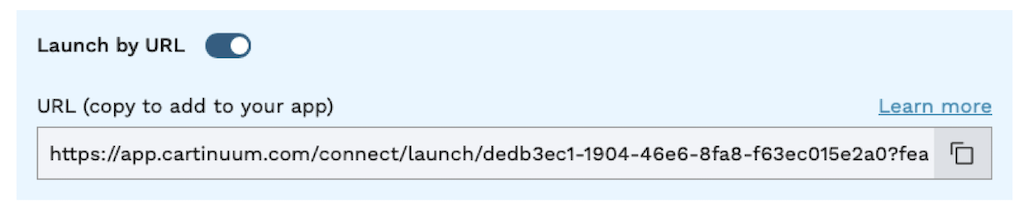
After you have saved your app workflow, you then select the Launch by URL option to reveal the URL that will be used to open Experience Builder. Copy this and use it in your business system.
 Common questions
Do I need to store the OBJECTID from my feature layer in my business system?
No. You can match on any attribute on your feature layer. For example, you might have the property identifier in a prop_ref attribute.
Can I select multiple features at once?
Yes. You can provide a list of features as a comma-separated list on the end of your launch URL.
For example, ?features=GCJ001,SRP107,OSC444.
Do my users need to have a Connect for ArcGIS login?
The launch URL can be used by anyone and does not require them to login. It is important you make sure your Experience Builder application is secured and will prompt your users to login if required.
Ready to streamline your workflows? Start a free trial today.

/Email%20Module%20Assets/linkedin.png)
/Email%20Module%20Assets/cartinuum_logo.png)
